
Free
Account housekeeping only, with no security features.
- Sign-up and sign-in
- Register and manage devices
- View history, delete your account
iPhone · Android · Windows · Mac
Encrypt documents, photos and passwords on your device, and approve on your registered phone whenever you open them.
iPhone · Android
iPhone needs iOS 16 or later. App lock works on Android 12 or later 64-bit phones and on iPhone.
Windows · Mac
Download only from popalabs.com and compare the SHA-256 checksum. If it does not match, do not run it and contact us.
01At a glance
Documents and photos as .popa files
Your phone confirms every open
Messaging and banking apps open after you verify
Logins, cards and notes, encrypted
File protection
Documents, photos and folders are encrypted on your device. Original files are never uploaded to the server.
Phone approval
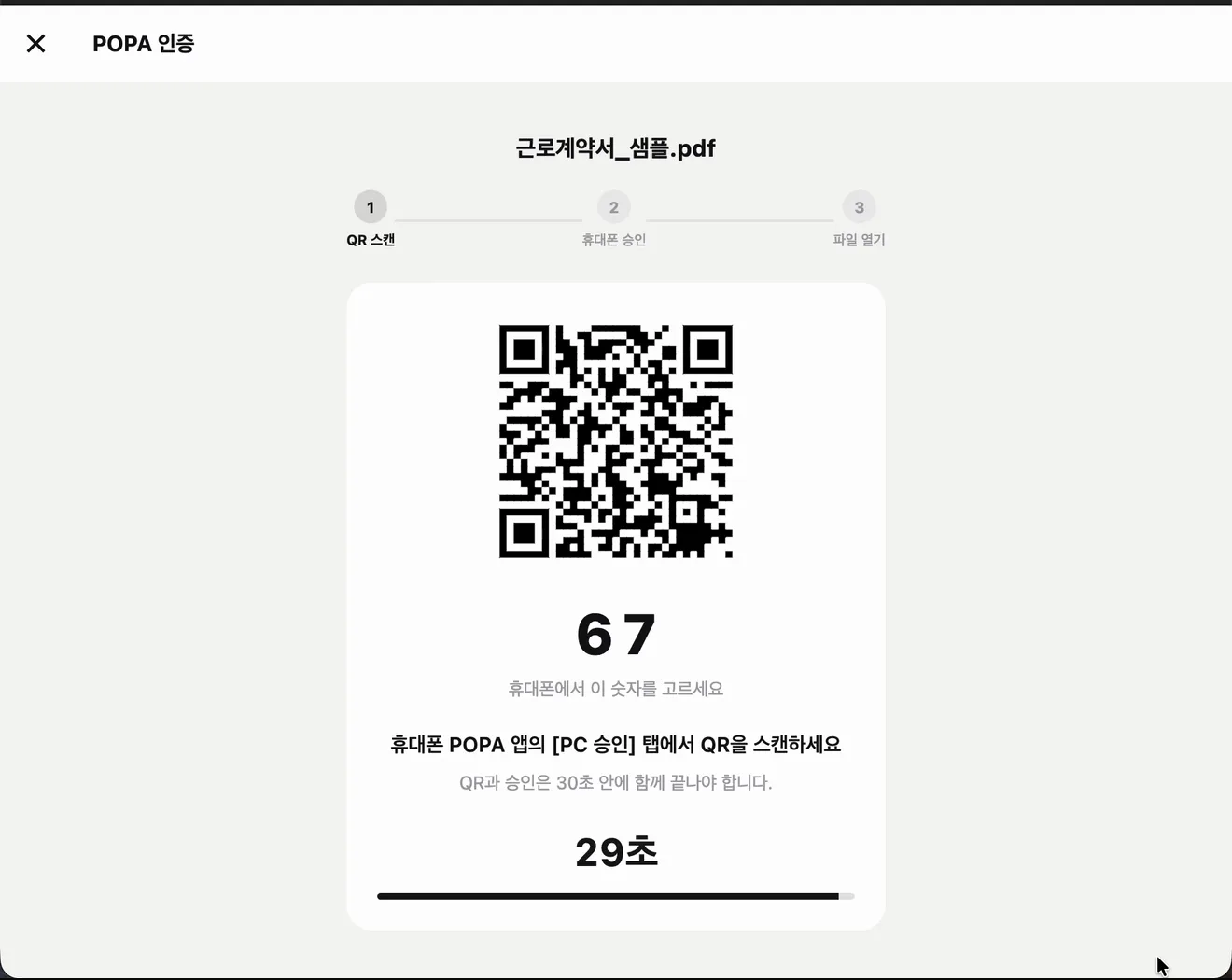
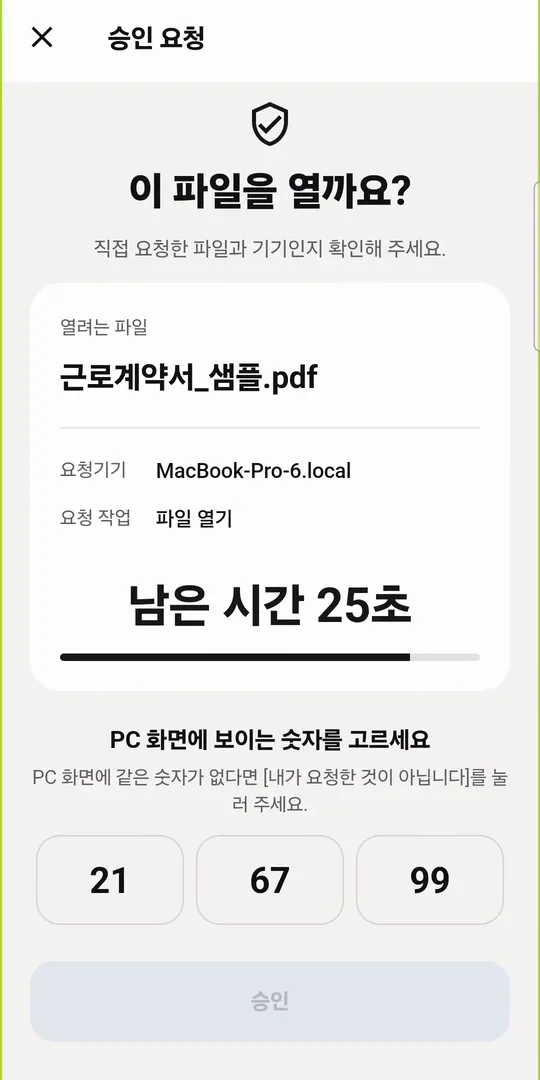
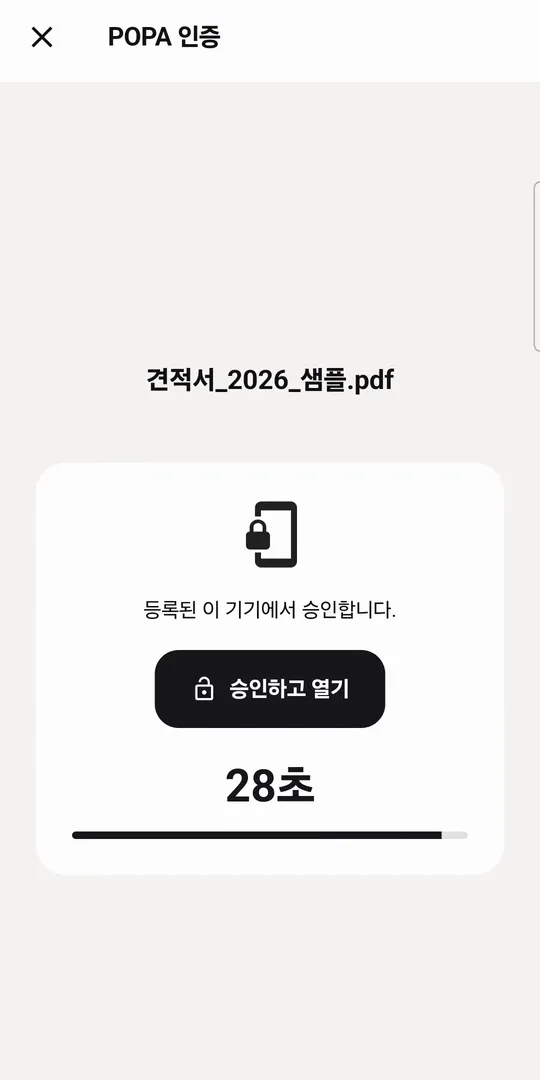
On a phone, tap Approve and open. On a PC, scan the QR code and select the same number.
App lock (app protection)
Opening a locked app shows the POPA lock screen first; after you verify, it stays open only for the time you chose.
Password vault
Logins, cards and secure notes are encrypted on your device; viewing them takes a phone approval.
02Security
03Sign-up & passes
Account housekeeping only, with no security features.
Needs a pass for the device type you use (PC or smartphone).
Approving PC requests on your phone is included in the PC pass, so a phone used only for approvals needs no pass of its own.
Short videos
Real phone and PC screens with Korean captions. Each opens on YouTube.
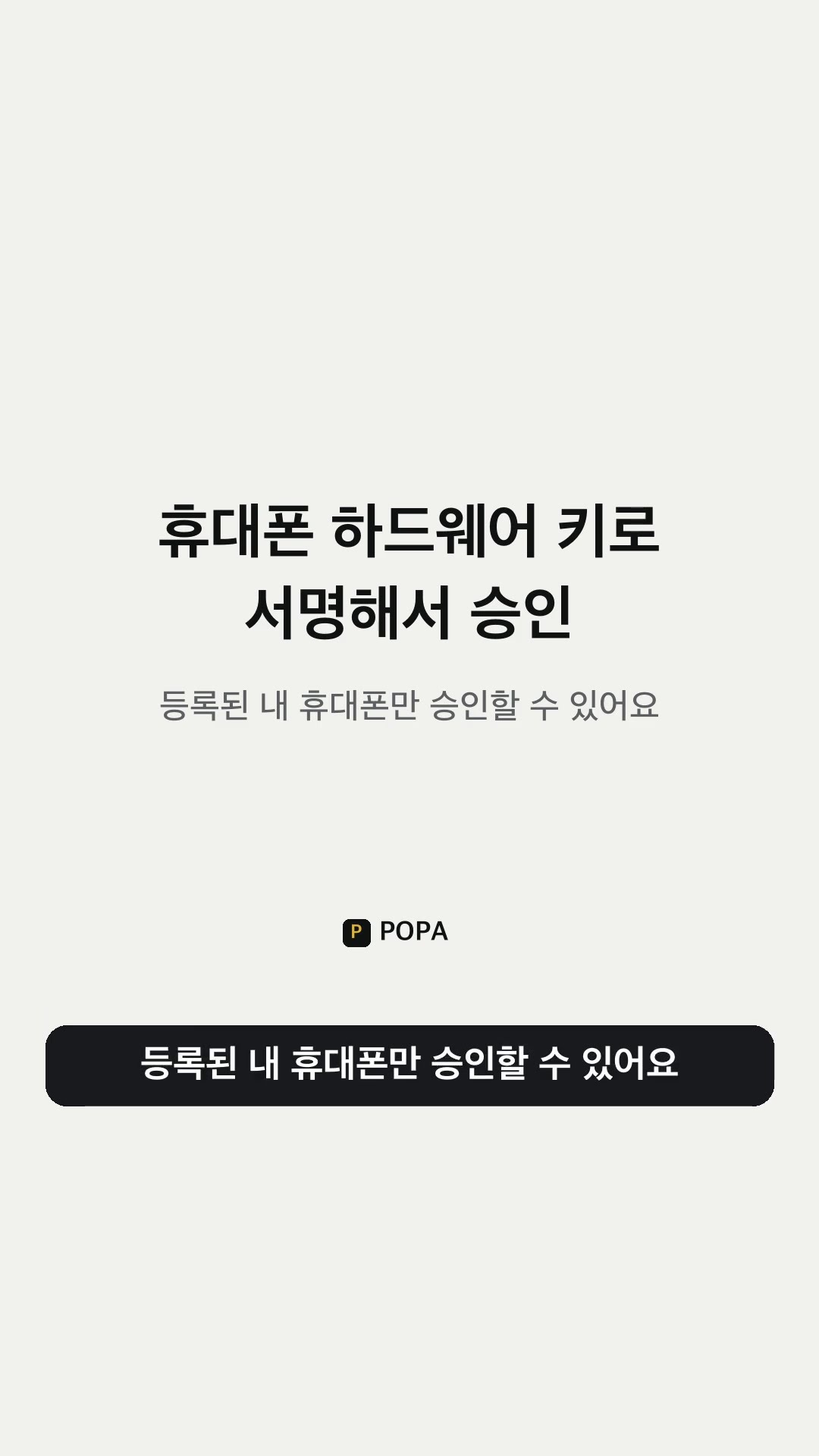 POPA는 어떤 앱인가요?내 휴대폰이 승인해야 열리는 파일을 만들어 주는 앱이에요.
 파일은 어떻게 잠그나요?[파일 보호하기]에서 파일을 고르면 .popa 보호파일이 만들어져요.
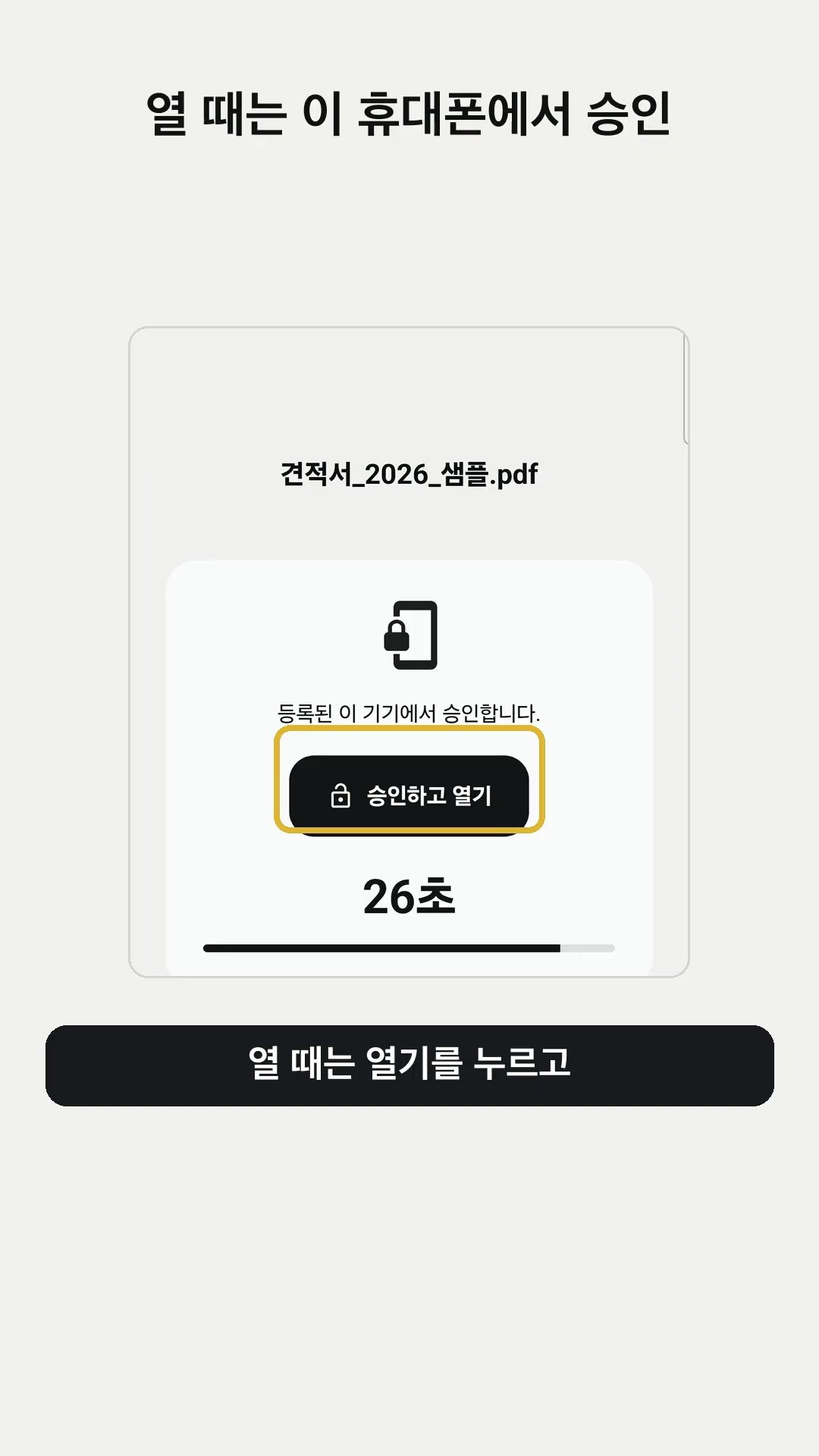
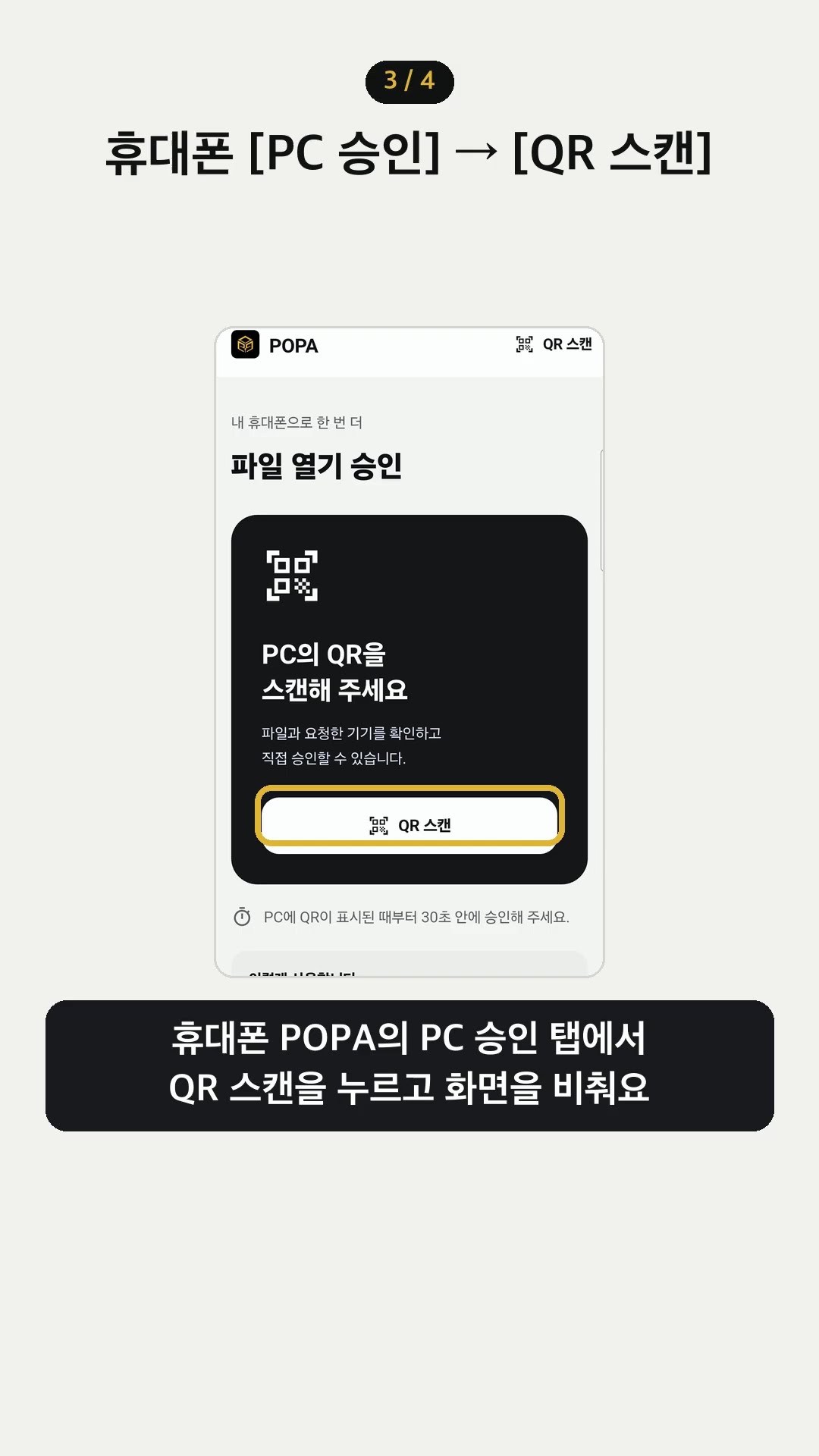 PC에서는 어떻게 여나요?휴대폰 위쪽 [QR 스캔]으로 QR을 찍고 같은 숫자를 골라 30초 안에 승인해요.
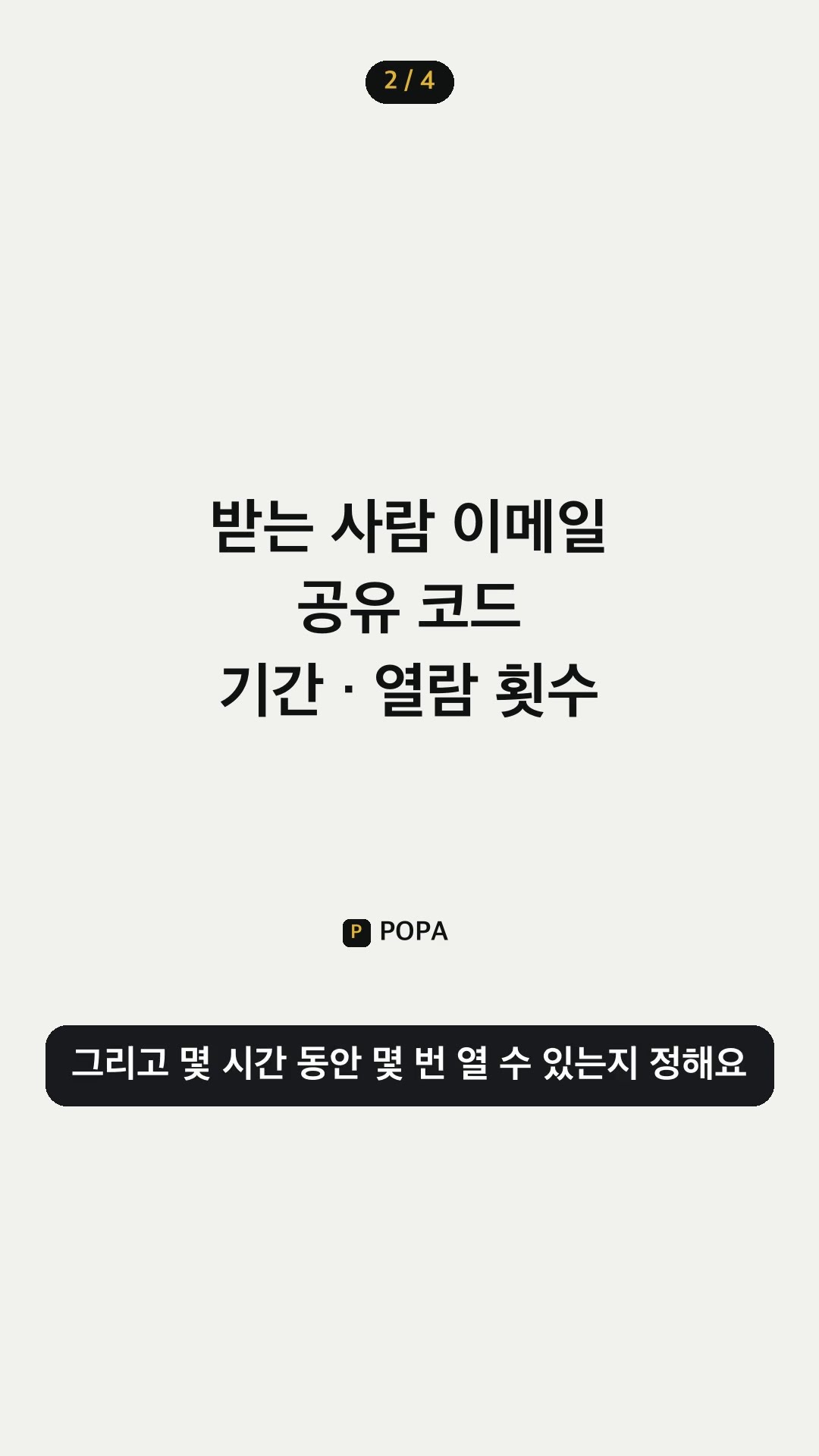 다른 사람에게 보내려면요?받는 사람 이메일과 공유 코드를 정하면, 받는 사람도 자기 휴대폰으로 승인해 열어요.
 휴대폰을 바꿨어요.새 휴대폰에서 로그인해 등록하고 [내 기기]에서 이전 휴대폰을 해지해요.
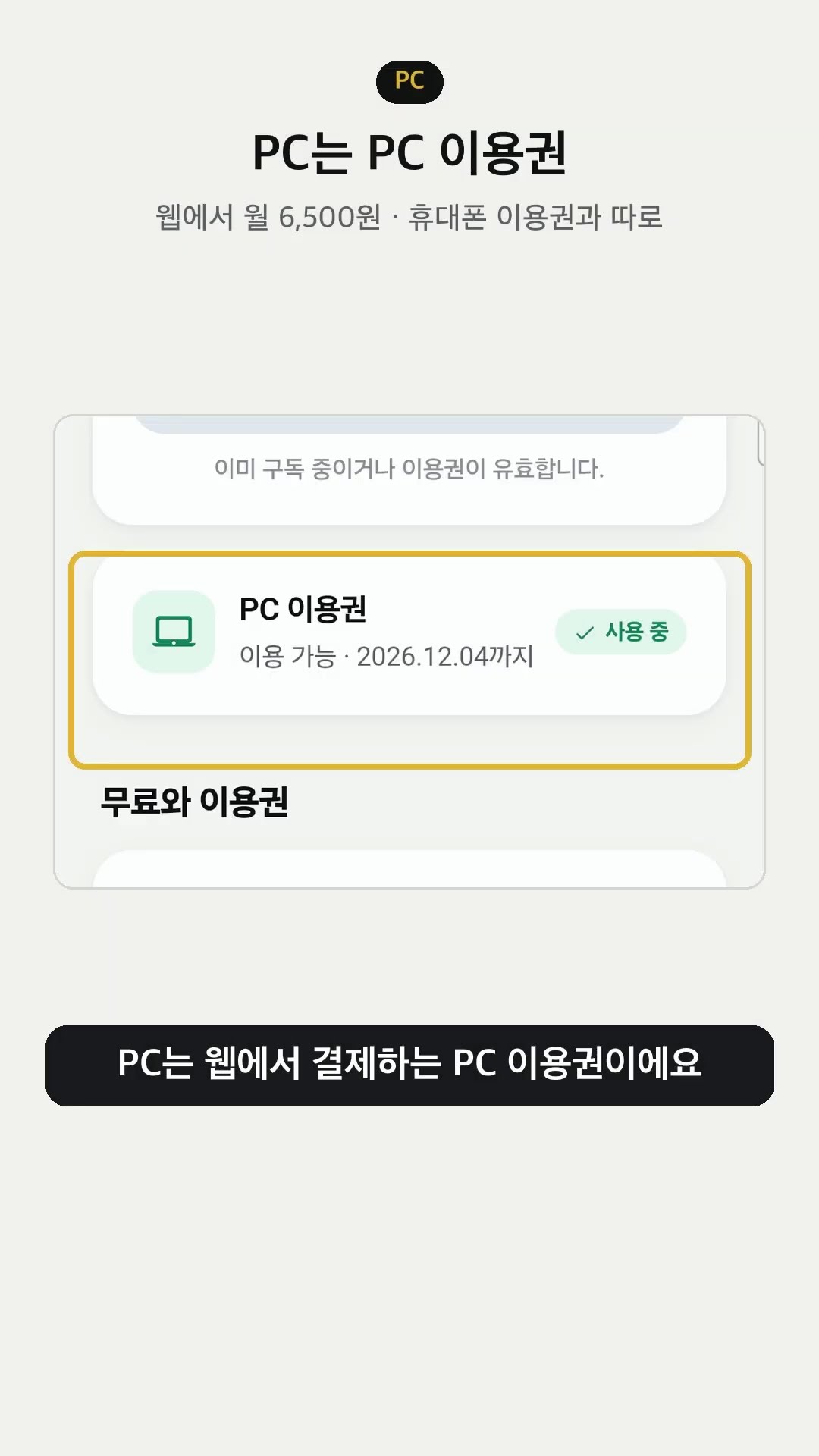 무료와 이용권은 뭐가 달라요?가입은 무료, 앱 잠금과 파일 보호·열기·공유는 이용권으로 써요.
04FAQ
POPA (Proof of Physical Action), made by POPA LABS Co., Ltd., encrypts documents and photos as .popa protected files. Opening needs your protection password and registered-phone approval. Sign-up is free; app lock and file operations need the matching device-type pass. App protection locks other apps and needs a smartphone pass. Neither screen-lock feature encrypts other apps’ data.
Android phones can install POPA from Google Play and iPhones from the App Store (iOS 16 or later) today. The Windows and macOS PC program can be downloaded from this site. App lock is supported on Android 12 or later 64-bit phones and on iPhone.
Sign-up is free; using POPA is paid. A free account covers account housekeeping only: sign-up, sign-in, password reset, device registration, records, device management, protected-file lists and account deletion. It has no security features. POPA app lock and protecting, opening and sharing files need the matching device-type pass: PC or smartphone. Locking other apps needs a smartphone pass. Approving PC requests on your phone is included in the PC pass, so a PC-only user does not need a smartphone pass.
Install POPA for Windows or macOS, sign in with the same account as your phone and approve PC registration on your phone. File protection, opening and sharing on PC need a PC pass. To approve opening, scan the PC QR with [Scan QR] at the top of the phone app, select the two-digit number shown on the PC and approve. Phone approval needs no smartphone pass. Enter your protection password to open the file.
Original file contents are never uploaded. The server holds accounts, devices, approval records, file metadata and file keys wrapped with a key derived from your protection password (Argon2id). See the security overview (Korean) for details.
The protection password is never stored on the server, so POPA LABS cannot see or reset it. Files protected with that password open only with the same password. Your login password can be reset with an email code.
Sign in with the same account on the new phone and approve it from the [Account → My devices] screen on your existing phone. If the old phone is unavailable, register the new one with the code sent to your sign-up email, then revoke the lost phone under My devices.
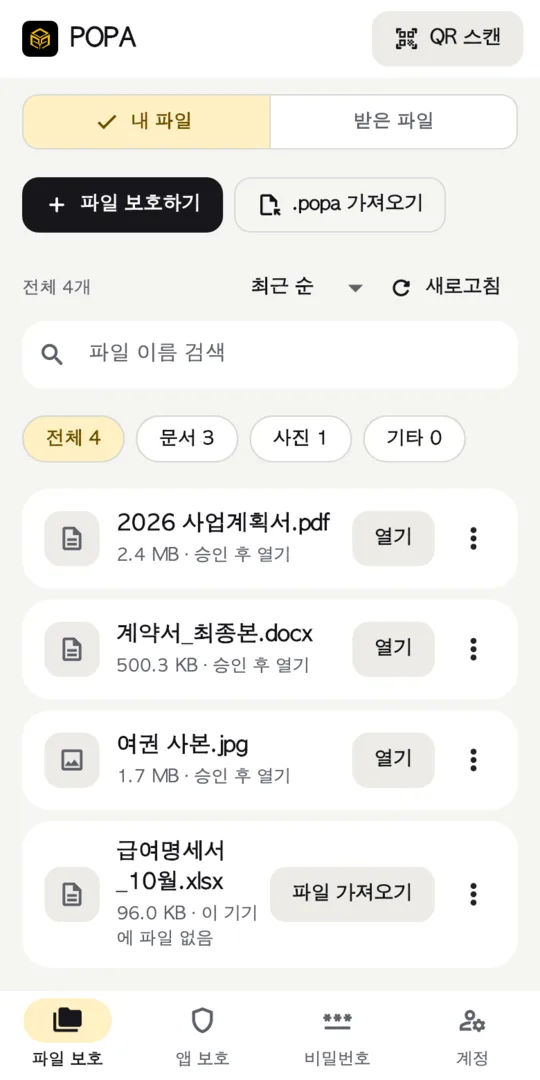
The phone app’s bottom tabs are File protection, App protection, Passwords and Account (in Korean: 파일 보호, 앱 보호, 비밀번호, 계정). PC requests are approved with [Scan QR] at the top. Account holds My devices, History, Work lock (QR), Lock method, Auto-lock, File save location, Passes, View my account on the web, Privacy notice, Official site, App version, Sign out and Delete account. The web account page (api.popalabs.com/account) shows passes, payments and devices.
Choose the apps to protect; when one opens, a POPA lock screen covers it. On Android, pick 1, 5 or 15 minutes, verify with fingerprint, face or device PIN, and the POPA server checks device integrity before approving; when the time is up the app locks again. On iPhone, chosen apps are shielded with Screen Time and unlocked for 15, 30 or 60 minutes after verification. Which apps are locked is stored encrypted on your phone only.
The lock is stored on the device only in a form that cannot be reversed, so POPA cannot tell you what it was. On the lock screen tap the forgot button for your method (in the Korean app: [PIN을 잊었어요]), then [로그아웃하고 다시 로그인], and sign in again with your account password; the lock on that device is cleared and you set a new one. Protected files and your protection password are unaffected.
A server-enforced lock checked before protected actions. The QR work lock is on; its status and [Lock now] are under [Account → Work lock (QR)] in the app. File protection, opening, sharing and temporary app unlocks require an open work lock. Request a QR by sign-up email, capture it and import it into POPA (phones can also scan a QR shown on another screen). It works once on the requesting device within 10 minutes. On a PC, a PC pass and a registered phone also let you choose phone approval (once within 2 minutes). Choose 5, 10 or 15 minutes (default 15); each protected action renews that time. Saving edits, lists, sign-in and POPA app lock are unaffected. The server keeps only a hash of the email QR; turning on two-step verification for your sign-up email is a good companion setting.
Sharing needs a pass. Set the recipient’s POPA email, a sharing code of at least 8 characters, a validity period and a view count. The recipient imports the .popa file under Received files in the File protection tab, enters the sharing code and approves on their own phone. You can revoke a share at any time; after that it can no longer be opened in POPA.
The original you selected stays as it is. Tapping [Lock and close] cleans up POPA’s temporary viewing file. Copies made by other programs are separate from the protected file and stay under your own management.
Normal POPA access needs a server connection and approval. While the service is available, open important files on an approved device and save normal copies separately. No confirmed outage-access or service-closure export procedure is available; ask before adopting POPA.
An iPhone (iOS 16 or later) or an Android phone, an email address and an internet connection. Sign-up and device registration are free; using POPA is paid. App lock and protecting, opening and sharing files need the pass for the device type you work on. File limits including protection data are 256 MB on phones and 1 GB on PC, and some file types may need a separate viewer app.
The camera scans QR codes, including PC approval codes and work-lock codes shown on another screen when that feature is enabled. App protection for other apps needs usage access, display over other apps and notification permissions on Android, and Screen Time permission on iPhone. It needs a smartphone pass and is separate from POPA app lock.
Deleting your account also deletes its file keys, so existing protected files can no longer be opened. Before deleting, open the files you need and save them as normal files. See [Account & data deletion] at the bottom of this site for how to delete.

Install it on your phone and sign up with your email. On a PC, sign in with the same account.
05POPA LABS
POPA stands for Proof of Physical Action. We build security that opens only when the person holding the registered device approves.
HUMAN ACTION BASED AUTHENTICATION
Partnership · rollout · general enquiries
ceo@popalabs.comNever send login passwords, verification codes, protection passwords or file contents by email.